- Home
- Learn
- Product guides
- Powerful Gira S1 features every KNX Integrator should be using
Powerful Gira S1 features every KNX Integrator should be using
The Gira S1 is a remote access module for KNX installations, but many integrators are only scratching the surface of what it can do. Beyond its core encrypted remote access functionality, the S1 includes a suite of tools that can dramatically improve diagnostics, monitoring, and system support. When used fully, these features save time on-site, streamline fault-finding, and unlock deeper visibility into system behaviour. This guide walks through the most valuable S1 capabilities that every KNX integrator should be taking advantage of, and how to deploy them effectively in your installations.
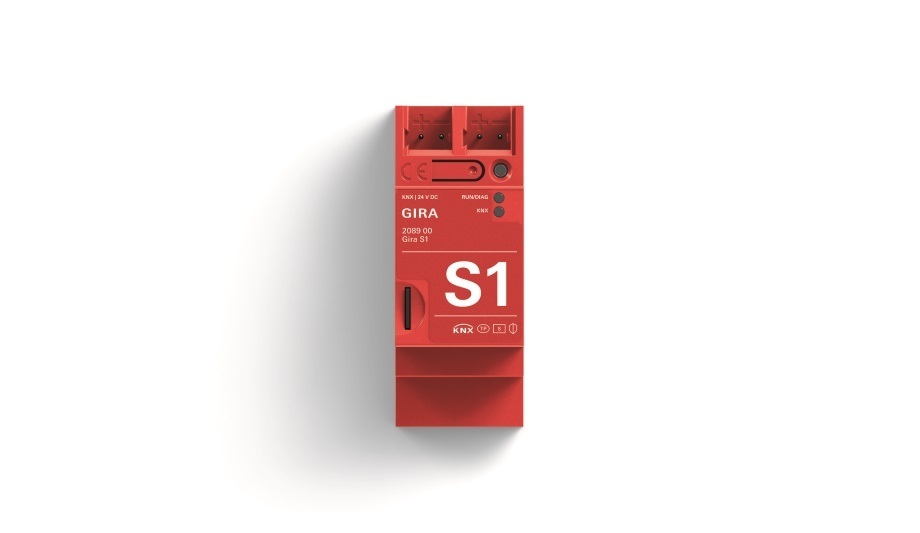
1. Data Logger - The Most Underused, High-Value Feature
The data logger is arguably the most powerful feature in the S1, yet many integrators never enable it.
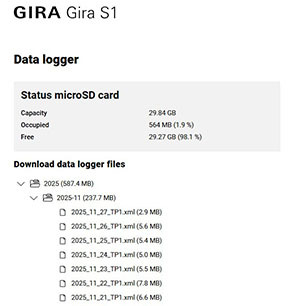
By inserting a Micro SD card into the S1 and enabling logging parameters in ETS, the device can capture full KNX bus telegrams for later analysis. This provides a complete picture of system activity, making it far easier to diagnose intermittent issues, track unexpected behaviour, or validate device communication.
How to set it up:
- Insert a Micro SD card (up to 1TB / SDXC supported).
- In ETS, enable the data logger parameters in the S1 application.
- Access logged telegrams by logging into the S1 web interface.
- Download the .xml file and import it into Group Monitor or Bus Monitor in ETS.
Why it matters:
Instead of relying on snapshots or guesswork, the data logger gives you long-term, system-wide visibility, ideal for installations where issues only appear under certain loads or at specific times.
2. Device Links - Secure Remote Access to Local Web Interfaces
The S1 allows you to remotely open web interfaces for devices on the internal network, even when no VPN is in place.
This is invaluable for:
- Wireless access points
- CCTV cameras
- Routers
- Visualisation interfaces
- Any IP device with a browser-based configuration page
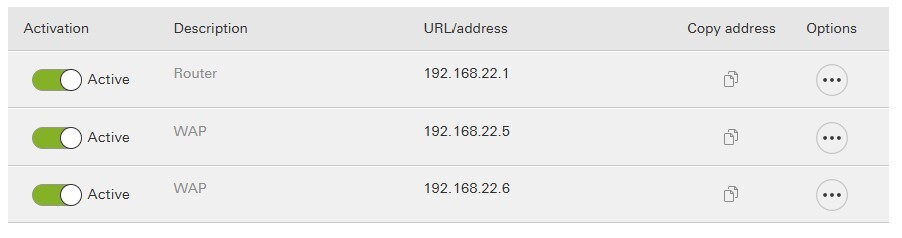
How to configure links:
- Log in to the Gira Portal and open your S1 project.
- Go to Links.
- Use Discover devices to scan the network, or Manual device link to add devices manually.
- Each link provides a secure, remote-accessible URL.
- Enter your Gira Portal password if prompted to authenticate.
Benefit:
This gives integrators secure, authenticated access to all essential network devices — without exposing the network or requiring additional VPN configuration.
3. VPN - Full Network Access When You Need It
While links provide access to individual devices, the S1 can also provide full network access via VPN using the OpenVPN protocol.
This gives you complete on-site capability remotely, including access to:
- IP interfaces for ETS
- Visualisation servers
- Routers and switches
- Third-party switches on the LAN
Set-up workflow:
- In the Gira Portal, create a VPN configuration.
- Download the generated OpenVPN profile.
- Import it into the OpenVPN client on your laptop.
- Connect to the system and access the network as if you were local.
This is one of the most powerful remote support tools available to KNX integrators, especially for large or evolving systems where on-site visits are costly or complex.
4. Notifications - Automated Alerts Based on KNX Telegrams
The S1 can monitor KNX telegrams and generate notifications based on specific triggers - a capability many integrators don’t realise exists.
Notifications can be sent as:
- Push notifications (via the Gira Smart Home App)
- SMS & Phone alerts (via external providers like MessageBird)
- IFTTT workflows for cross-system automation
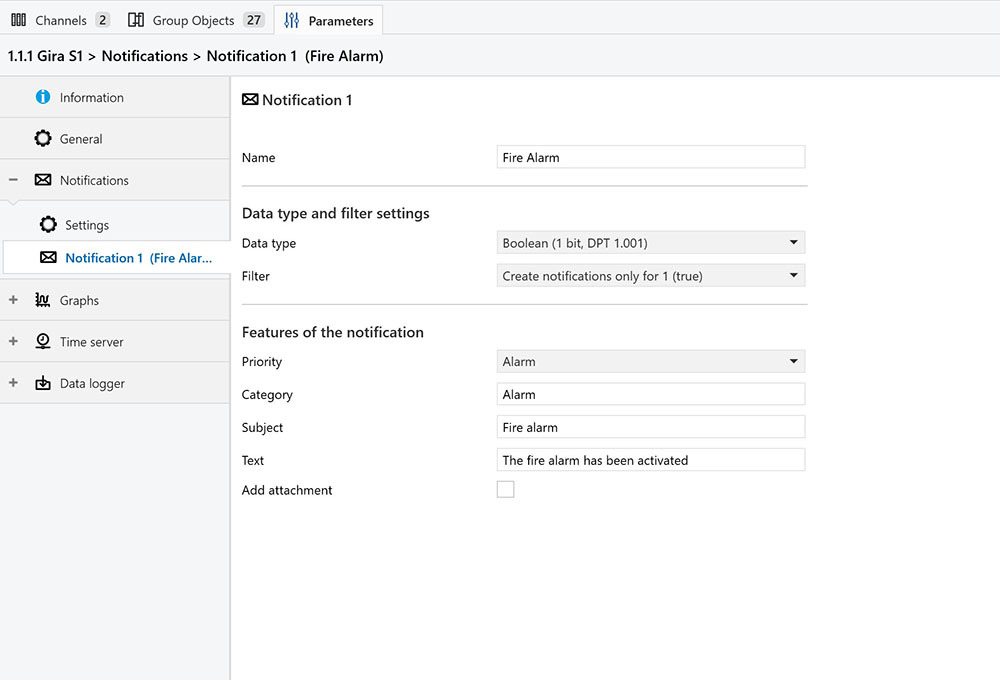
Configuration steps:
A. In ETS
- Open S1 parameters → Notifications.
- Define the notification type and message content.
- Set the criteria for triggering the event (e.g., specific GAs or values).
B. In the Gira Portal
- Go to Notifications to verify messages are arriving.
- Open Message forwarding to define how each notification is delivered.
- Configure rules based on Severity and Category.
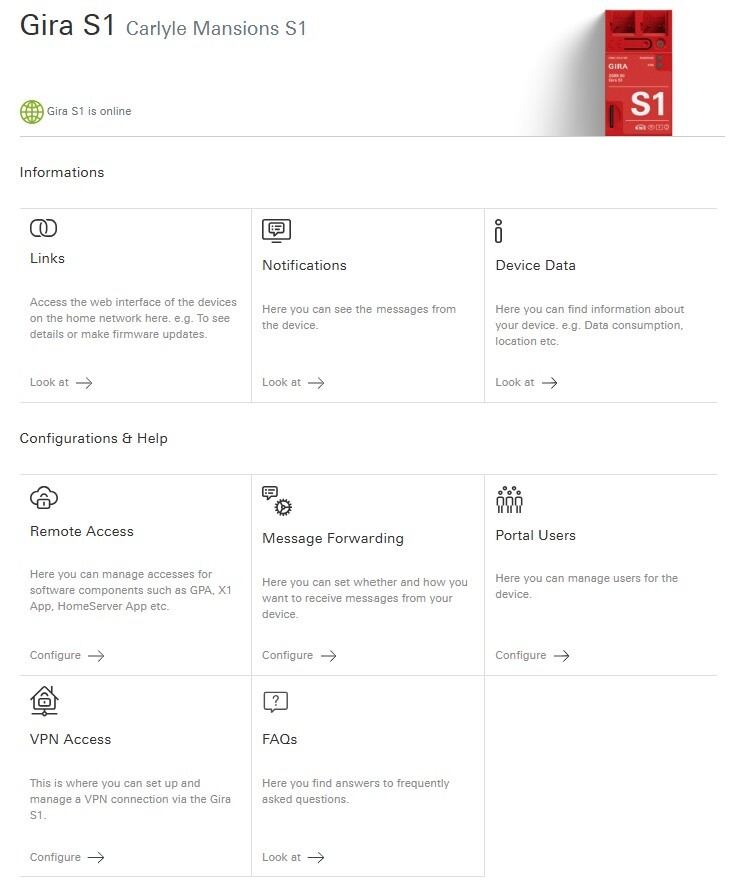
Common use cases:
- Alert when a device or line stops responding
- Receive notifications for critical temperatures or power values
- Monitor security-related telegrams
- Treat specific events (e.g., pump run-time, error flags) as push alerts
This gives integrators powerful, remote insight into system health, and gives clients timely information without needing additional logic modules.
5. Graphs - Live and Historical Data Visualisation (Firmware V7)
Graphing is the newest addition to the S1, available with Firmware V7 and above (not supported on hardware versions I00/I01). It allows you to plot and monitor KNX datapoints directly in the S1 interface.
You can:
- Record multiple datapoints
- Visualise trends over time
- Overlay multiple values on one graph
- Display graphs on the X1 or G1 using URL calls
- Embed graphs in web pages via simple HTML
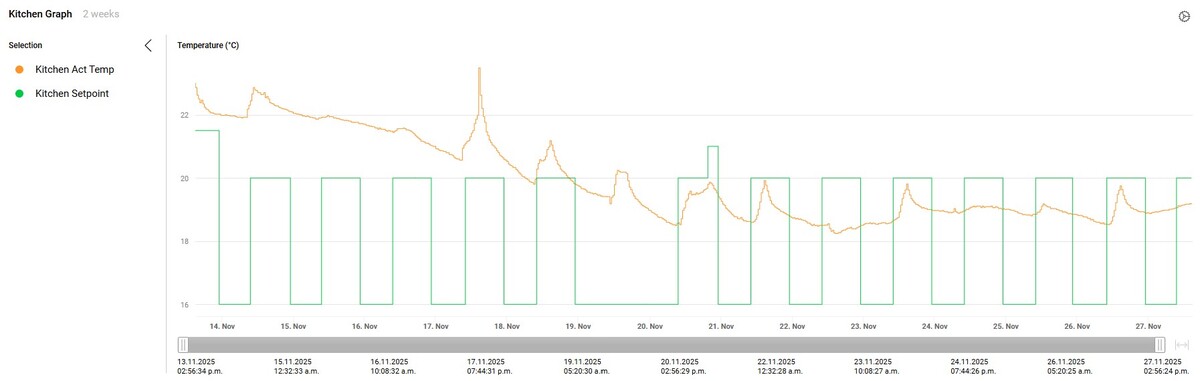
Setup in ETS:
- In S1 parameters → Graphs, select how many datapoints you want to log.
- Configure each record, including naming (as it appears in the graph).
Setup in S1 Web Interface:
- Log into the S1 via a browser.
- Go to Graphs → Add graph.
- Select datapoints and choose the display period.
- Hide/show datapoints dynamically in the viewer.
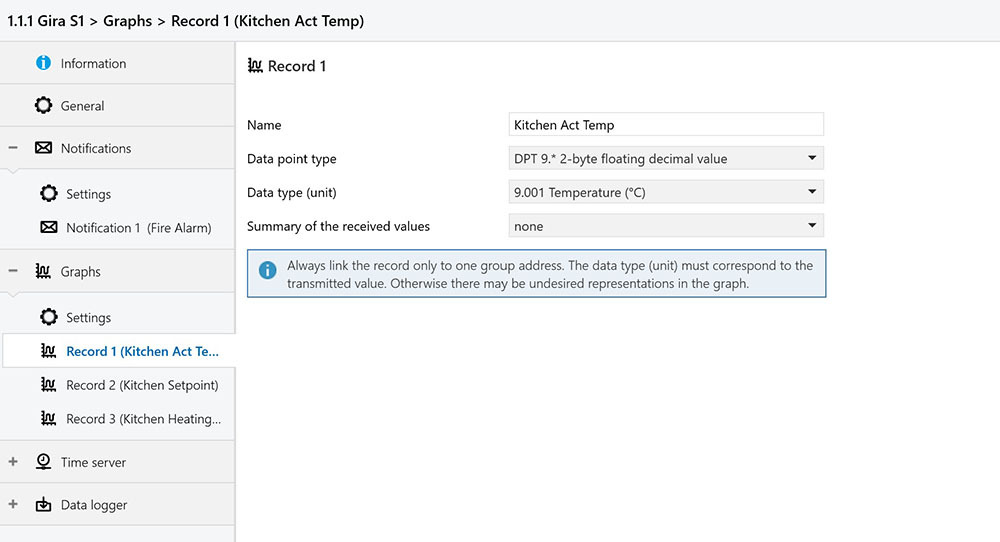
Use cases include:
- Temperature trends
- Energy consumption curves
- Valve or actuator positions
- Power monitoring
- CO₂ or humidity trends
This turns the S1 into a lightweight monitoring and diagnostics tool — no additional servers required.
Summary: Why These Features Matter
Most integrators use the Gira S1 for remote access, but its deeper functions offer far more value:
- DATA LOGGING reduces troubleshooting time.
- DEVICE LINKS simplify remote maintenance of third-party equipment.
- VPN ACCESS gives full remote capability without site visits.
- NOTIFICATIONS keep you informed of system behaviour and issues.
- GRAPHING offers real-time monitoring and historical insight.
For more information on the Gira S1 head to the product page here